If you're trying to be more intentional with how you spend your time online, blocking certain domain names can help curb mindless scrolling.
Customizing your DNS is the easiest way to do this. This method can stop you—or anyone else—from spending two hours refreshing Reddit to see if someone replied to your post wondering why your girlfriend is both stunning and somehow still into you.
Before we dive into the setup, let’s establish a guiding principle: aim for simplicity. DNS-level blocking is powerful, but if overused, it becomes a chore. Choose a setup you can stick with—one that doesn’t require constant tweaking.
For instance, let’s say you’re trying to reduce your time on YouTube. If you still want occasional access—like searching “how to microwave frozen pizza”—then blocking YouTube entirely at the DNS level isn’t the right move. DNS blocking is binary: it’s either fully accessible or completely unreachable. So unless you're ready to give it up entirely, it's better to explore softer restrictions like browser extensions, app timers.
Okay let's start:
Sign up at NextDNS . Signing up is deceptively simple, asking for nothing more than an email and a password.
Once you register, you will see a screen with 'My First Profile' at the top. You already have a custom DNS profile, but we need to customize this profile. This profile will by default have ad and trackers blocklist setup.
To block websites you have two options in NextDNS,a "Deny List" or using "Parental Control restrictions'". Both options are useful; you can decide based on your goals and they can be used in conjunction.
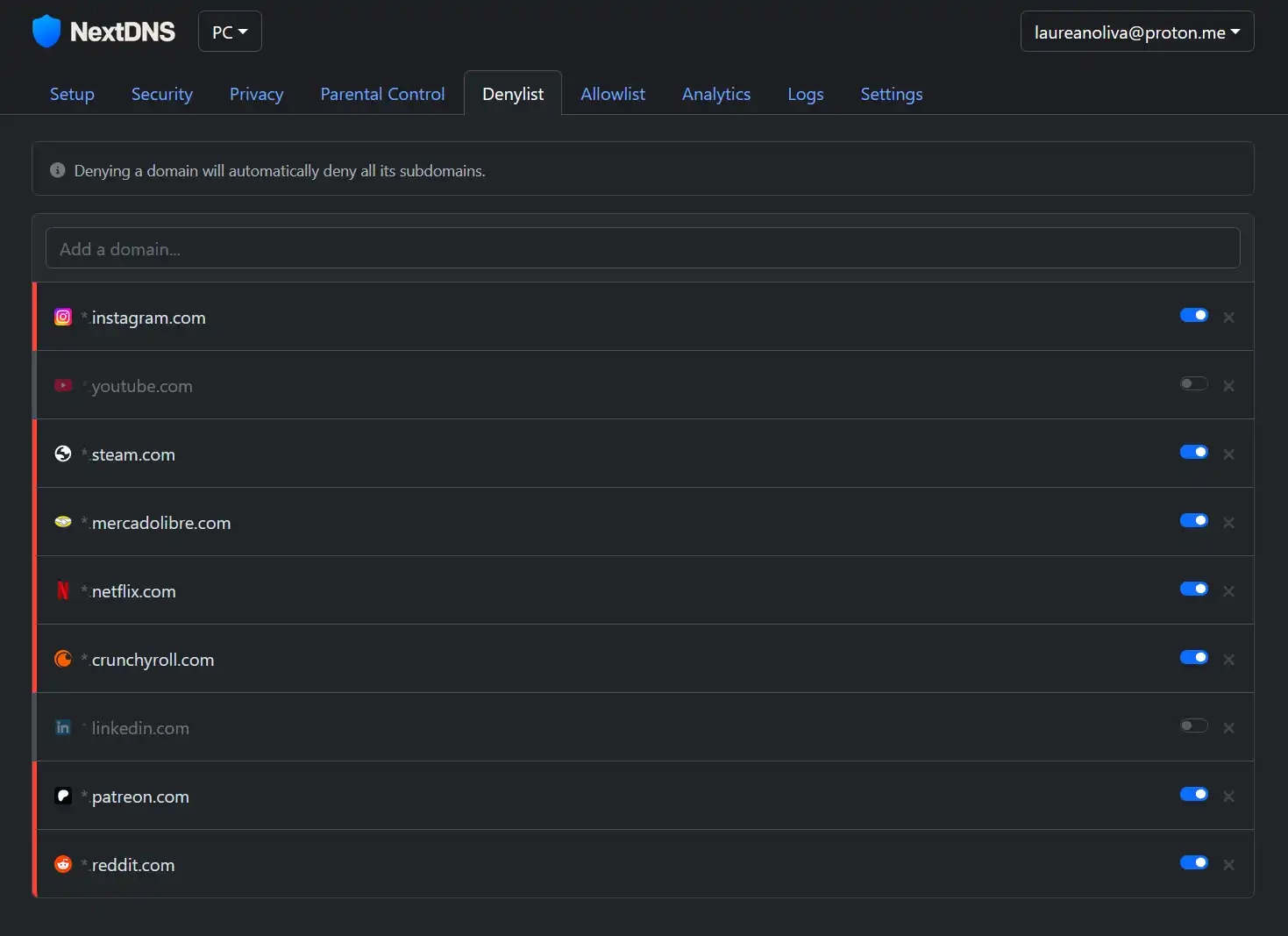
On the top Panel you can go to Deny list. Here, you can setup any domain you want to block. Here's a snapshot of the domains I personally block. Your list will depend on your goals:
Parental Controls offer less flexibility—you are restricted to toggling predefined sites. As can bee seen here:
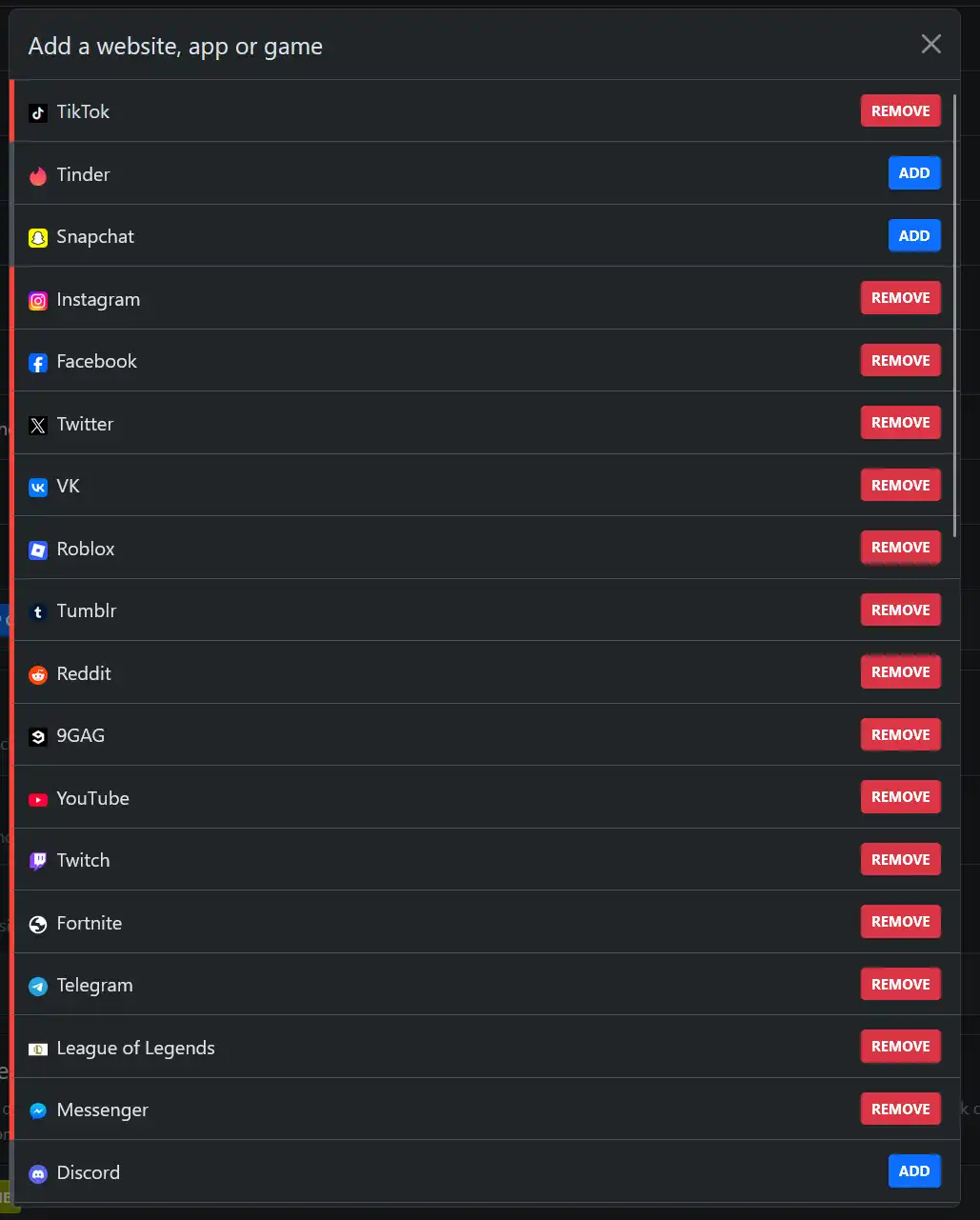
Still, they come with useful features like:
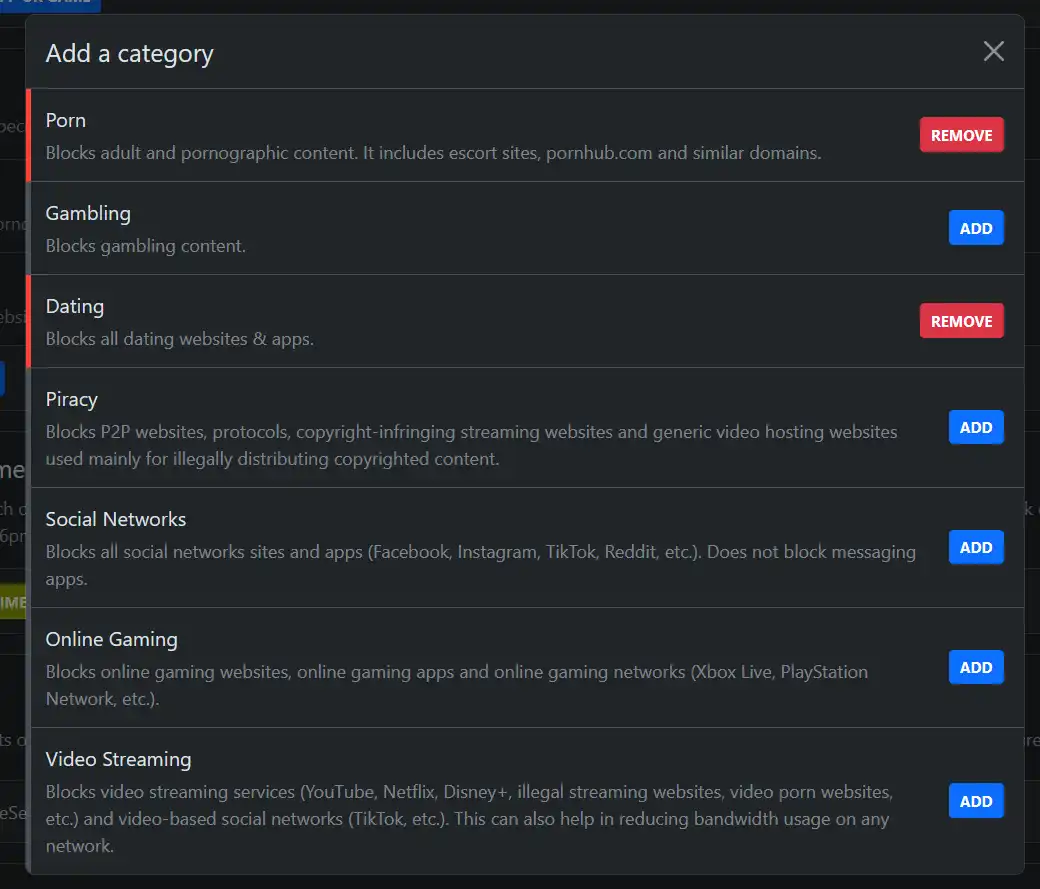
Category Blocking
This is exactly what it sound like. It has some categories that you can block like for example porn, gambling, dating, privacy, social networks, etc.
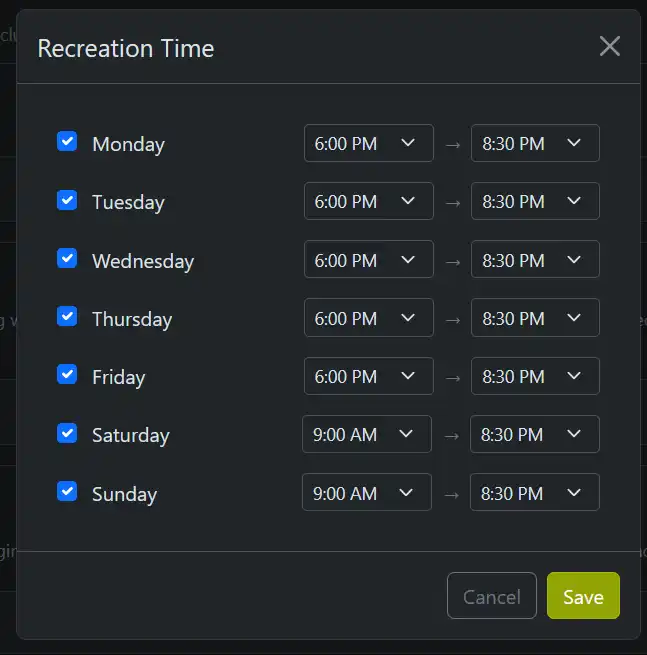
Recreation Time
This feature is surprisingly handy. You can schedule windows of access for blocked categories—perfect for those who want to keep things like adult content off-limits except for, say, Saturday night existential spirals.
Ads hijack your attention—and sometimes your appetite. You see a burger ad, and two hours later you're ordering Uber Eats.
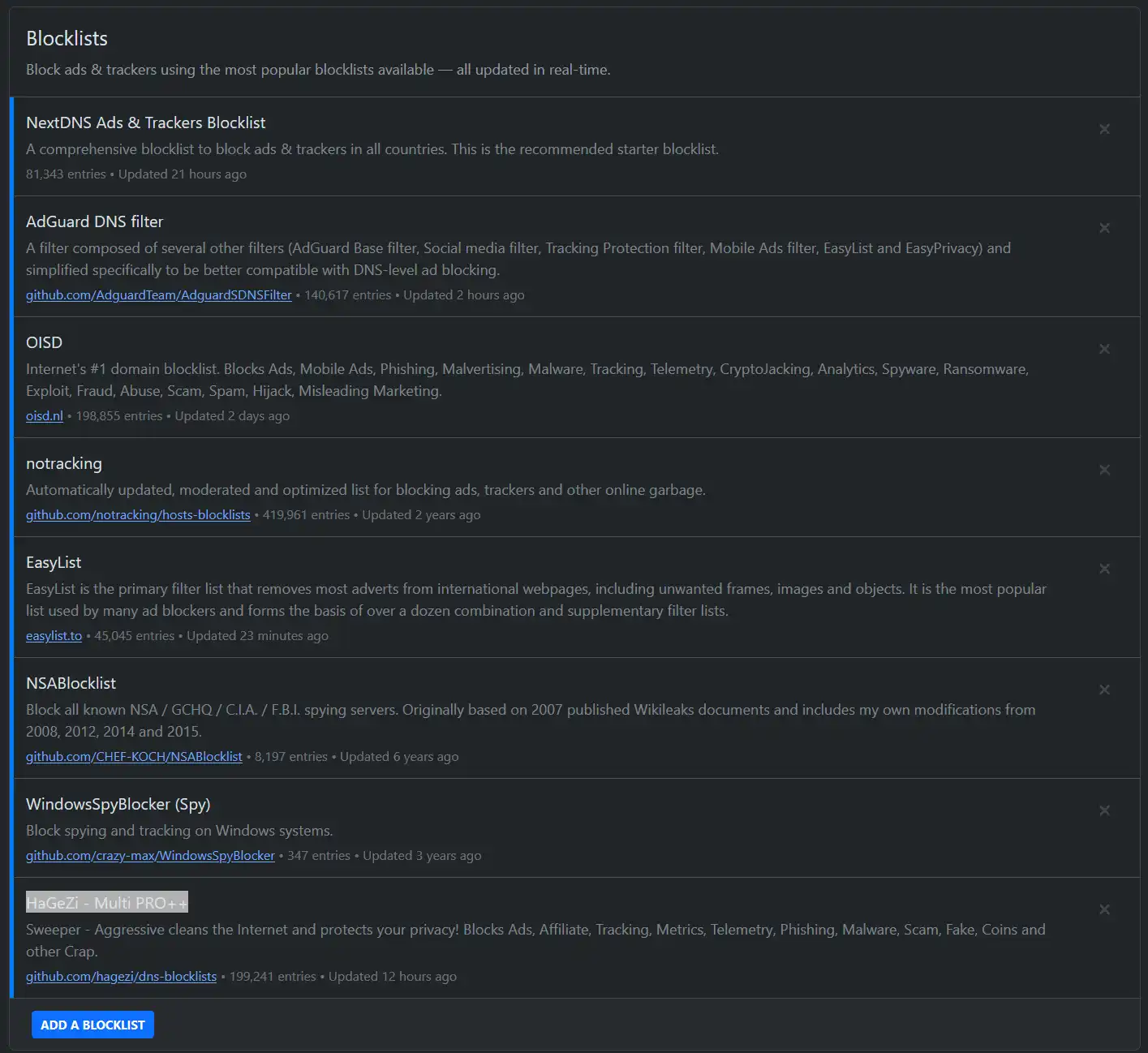
In the Privacy tab, under Blocklists, you can add community-maintained lists that block telemetry, ads, malware, and trackers. These work like curated deny lists.
You might think that adding all the lists you can is a good idea. However remember that ads, trackers, and telemetry are integrated into many different website process. Some lists might block many things but will also break many sites, so this is a balancing game.
Mistakenly blocked sites will multiply as you add more blocklists. So keep that in mind.
Start small. Pick 2–3 well-maintained lists and test your browsing experience. If sites break, scale back.
Here are the Lists I am using:
- NextDNS Ads & Trackers Blocklist
- AdGuard DNS filter
- OISD
- notracking
- EasyList
- HaGeZi - Multi PRO++
Once you configure your profile, it’s time to apply it to your device.
Whether you're on iPhone, Android, Mac, Linux, BSD, Windows, or even a router, go to the Setup tab and follow the guide for your platform.
For this, go to the Setup Tab in Next DNS and find the Setup Guide that is appropriate for your Device.
I recommend trying not to use an application. Manual setup is cleaner and gives you full control. Avoid installing extra apps unless absolutely necessary—they often come with baggage.
Do you care about privacy? If so, a cool tab under the blocklists in the privacy tab helps you block native telemetry for various systems. I personally use the Windows, and Samsung Blockers.
These telemetry blockers are great if you're serious about privacy. Just remember: blocking too aggressively can break things, so test and adjust as needed.