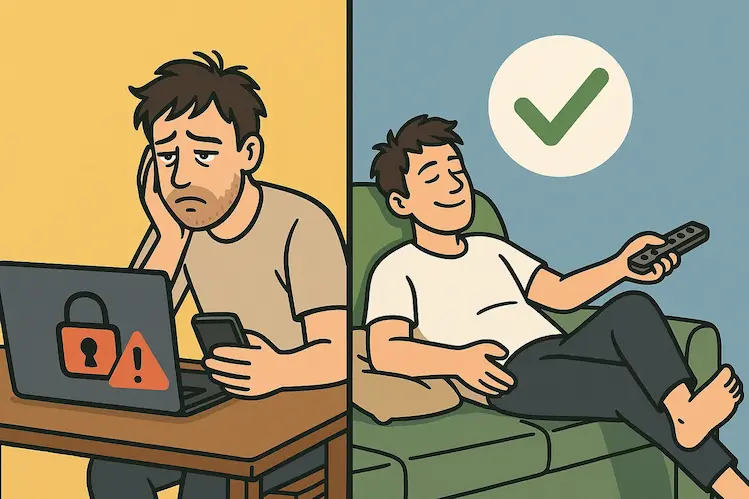
Let's be real: backup advice is usually about as exciting as watching paint dry. But losing your password database? That's the digital equivalent of your house keys, wallet, and social life all vanishing into the void at once.
I'm going to show you how to set up KeePassXC backups so simple that even future-you (who's probably tired and just wants to log into Netflix) will be grateful.
Picture this: You've spent years curating the perfect password database. Then one day, your computer decides to have a meltdown. Or you accidentally delete the wrong file. Or your cat walks across the keyboard while you're making changes (true story).
Without backups, you're not just locked out of instagram you're locked out of your email, banking, and that secret Pinterest board about miniature dollhouses. It's digital homelessness.
Open KeePassXC and head to Tools → Settings → General. Scroll down until you see "Backup database file before saving." It's located in the "File Management" section. Check that box. Congratulations, you've just implemented 90% of a decent backup strategy.
The default backup setup has one flaw: it keeps overwriting the same backup file. That's like having only one spare key and constantly recutting it. What if you don't realize you made a mistake until three changes later?
Here's the pro move: add {TIME} to your backup path:
/home/yourname/backups/{DB_FILENAME}.{TIME}.kdbx
Now every save creates a timestamped backup. It's like having a time machine for your passwords.
- The Accidental Delete: That moment of panic when you delete an entry and immediately hit save
- File Corruption: When your database file decides to become modern art instead of functional data
- Sync Conflicts: When cloud services have a disagreement and your file gets caught in the crossfire
This backup setting sticks to the application, not your database file. If you open KeePassXC on your laptop and desktop, you need to set this up on both.
If you really want to sleep well at night, set up a second backup location. Maybe an external hard drive that only gets plugged in once a month. Or a different cloud service than your main sync. Because one backup is good, but two backups means you can confidently ignore that little voice saying "are you sure you're backed up?"
Setting up KeePassXC backups is like flossing: everyone knows they should do it, but most people don't until they have a problem. Except unlike flossing, this takes five minutes and you'll never have to think about it again.
Your future self—the one who didn't just lose 200 passwords—will thank you. Happy backing up!